Internet Time sync using NTP servers causes frustration for a lot of Windows users. The following instructions will reset the NTP run-time and adjust the NTP server setting. Make sure you haven't set conflicting settings in Group Policy.
1. The default server, time.windows.com, is just not as reliable as some other NTP servers publicly available. However, the best practice now is to sync to a NTP pool and/or your local university's or ISP's NTP servers. Get the list of servers for your location at the NTP Pool Directory. Example: 0.us.pool.ntp.org 1.us.pool.ntp.org 2.us.pool.ntp.org 3.us.pool.ntp.org
2. Run the following commands from an Administrator command prompt:
Showing posts with label networking. Show all posts
Showing posts with label networking. Show all posts
18 October 2009


15 April 2009
Reset Networking to (Possibly) Speed Up WiFi + Ethernet!
I noticed reconnecting to a wireless network after waking my Vista laptop from sleep was delayed. Also, running Internet speed tests showed slower rates, both over WiFi and even connected via Ethernet cable. I had been adjusting cabling and my router, so I had thought the problem was in that.
In the end, resetting networking components in Windows fixed all the problems. I gained 3000 Kbps in speed to match the cable Internet service I pay for. If you are having similar problems, try running the following Netsh commands from an elevated command prompt and then restart your PC:
In the end, resetting networking components in Windows fixed all the problems. I gained 3000 Kbps in speed to match the cable Internet service I pay for. If you are having similar problems, try running the following Netsh commands from an elevated command prompt and then restart your PC:
- netsh winsock reset
- netsh int ipv4 reset
- netsh int reset all
03 April 2009
How to Determine Channels of Nearby Wireless Networks
Run the following from a command prompt:
netsh wlan show networks mode=bssid
21 February 2009
UPnP Wireless Routers + Vista + IGDDC (???)
To get the most out of your wireless router, get one that is certified for Windows Vista. Officially, there aren't many. You can test your router for Vista-friendly features with Microsoft's online check (IE6+ only). Luckily, my new Netgear router had updated firmware to take advantage of UPnP etc., but my old LevelOne router did not have proper UPnP functionality even though it was in the release notes for the latest firmware. UPnP is handy for opening ports when necessary for multimedia streaming. There have been security concerns about UPnP in the past, but Vista does well to separate Public vs Private networks.
Following the results of the above-linked Internet Connectivity Evaluation Tool can be tricky. You can find online documentation for disabling RWIN auto-scaling if necessary or enabling Compound TCP if your router can accept it (either using Netsh), if those defaults should be changed. However, it can be a real mystery to make your UPnP router work. It could be the Microsoft has another confusing and hard to-remember name for the technology: Internet Gateway Device Discovery and Control (IGDDC). To take advantage of IGDDC, you must have:
Following the results of the above-linked Internet Connectivity Evaluation Tool can be tricky. You can find online documentation for disabling RWIN auto-scaling if necessary or enabling Compound TCP if your router can accept it (either using Netsh), if those defaults should be changed. However, it can be a real mystery to make your UPnP router work. It could be the Microsoft has another confusing and hard to-remember name for the technology: Internet Gateway Device Discovery and Control (IGDDC). To take advantage of IGDDC, you must have:
- A UPnP-compatible router with UPnP enabled
- Network Discovery turned On (be on a "Private" network)
- Internet Connection Sharing turned On for the Wireless Network Connection
- UPnP Device Host service set to Automatic (Delayed) (this is the default)
06 January 2009
Fix Wireless Network Reconnection
If you're having problems with reconnecting to your wireless network after wake/resume from sleep/standby, or if you are getting errors upon connecting due to cancellation or timeout, or if you are having other problems with your wireless in Windows XP SP2 or Vista, try these solutions:
30 December 2008
Improving Wireless Networking on Vista (and XP?)
Some commands for the Command Prompt:
- netsh int ipv4 reset
- netsh winsock reset
- netsh int tcp set global rss=enabled chimney=disabled autotuninglevel=normal congestionprovider=ctcp ecncapability=enabled timestamps=disabled
- ipconfig /release
- ipconfig /renew
- DhcpConnForceBroadcastFlag 0
26 November 2008
Parallel Port Driver Service Failed to Start
If you don't have a parallel port on your computer, this is easily fixed from the command line:
sc config parport start= disabled
sc config parport start= disabled
21 November 2008
Disable Wireless LED with Gigabyte GN-WI06
HKEY_LOCAL_MACHINE\SYSTEM\CurrentControlSet\Control\Class\{4D36E972-E325-11CE-BFC1-08002BE10318}\0008
In the registry key above, changing the value for LinkLedFunc to 00 from 03 effectively disabled the WLAN indicator LED. Simply deleting the LED keys did not do the trick.
In the registry key above, changing the value for LinkLedFunc to 00 from 03 effectively disabled the WLAN indicator LED. Simply deleting the LED keys did not do the trick.
04 August 2008
How to Disable the Annoying Blinking LED for an Atheros Wireless Adapter
In Regedit, go to HKEY_LOCAL_MACHINE\SYSTEM\CurrentControlSet\Control\Class\{4D36E972-E325-11CE-BFC1-08002BE10318} and look the key for your wireless adapter.
Back it up then delete the following keys:
gpioPinFunc1
gpioLedCustom
gpioFunc1ActHi
After, restart.
If you want to have a visual cue of network activity, you can right-click the network icon in the notification area of the taskbar and select Turn On Activity Animation, and this is more subtle and less distracting than the amber LED. By the way, the button to turn the wireless adapter on and off still works after deleting the above keys.
Crossposted here
Back it up then delete the following keys:
gpioPinFunc1
gpioLedCustom
gpioFunc1ActHi
After, restart.
If you want to have a visual cue of network activity, you can right-click the network icon in the notification area of the taskbar and select Turn On Activity Animation, and this is more subtle and less distracting than the amber LED. By the way, the button to turn the wireless adapter on and off still works after deleting the above keys.
Crossposted here
17 March 2008
Services You Should Disable If You Aren't on a Microsoft Network
These being disabled won't affect Internet usage, but you won't be able to do Microsoft networking stuff. For me, those features are more of a liability than a help. Some are disabled by default, because even Microsoft has determined that they are risky.
- Alerter
- ClipBook
- Computer Browser
- Distributed File System
- Distributed Link Tracking Client
- Messenger
- Net Logon
- Net.Tcp Port Sharing Service
- Netmeeting Remote Desktop Sharing
- Network DDE
- Network DDE DSDM
- Remote Registry
- Server (and uncheck Client for Microsoft Networks and File and Printer Sharing in your network connection properties)
- TCP/IP NetBIOS Helper (and disable NetBIOS over TCP/IP in your network connection TCP/IP properties)
- Telnet
- Terminal Services Session Directory
- Distributed Link Tracking Server
- Error Reporting Service
- IMAPI CD-Burning COM Service (unnecessary if you have burning software, I believe)
- Indexing Service
- Intersite Messaging
- Kerberos Key Distribution Center
- License Logging
- Network Provisioning Service
- Performance Logs and Alerts
- Remote Desktop Help Session Manager
- Routing and Remote Access
- Smart Card
- WebClient
Some Services Are Just Supposed to Run "Manual"
I tweak with Services settings for better security and performance, but it's a silly endeavor, because the services themselves are quirky: they might not start correctly if they are set to Manual when they should be Automatic (3rd party services especially, it seems) and vice versa!
Here are some services that should have their startup types be Manual even though they are running most of the time:
Here are some services that should have their startup types be Manual even though they are running most of the time:
- COM+ Event System
- Network Connections
- Network Location Awareness (NLA)
- Remote Access Connection Manager
- Telephony
- Terminal Services
16 March 2008
2 Nice & Free Security Utilities: Seconfig and SpywareBlaster
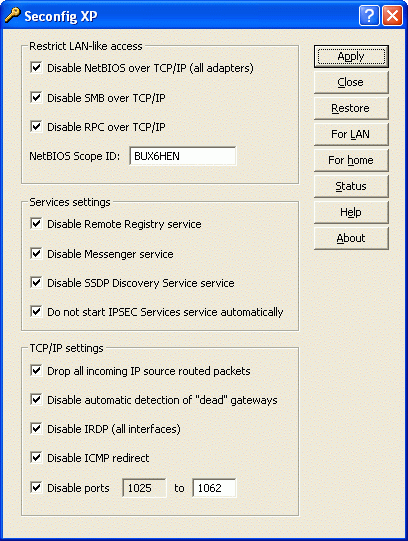 What's nice about these is that they help secure your machine without having anything run in the background to slow you down at all: Seconfig and SpywareBlaster
The Annoying Icon that says "Acquring Network Address" When You're Already Connected
This complaint is all over the web, but I first saw a solution at DSL Reports
Using Intel Proset/Wireless software to manage wireless network connections, there was a weird and annoying issue where connection to a wireless network would work fine, but the little notification area wireless icon would animate endlessly with the tooltip "acquiring network address." Using the Hide Inactive Icons feature of the Start Menu control panel didn't work; the icon would reappear. This KB article is no help either.
The problem is that the Network Location Awareness Service wasn't running. Launch services.msc and change its startup type to Manual.
Using Intel Proset/Wireless software to manage wireless network connections, there was a weird and annoying issue where connection to a wireless network would work fine, but the little notification area wireless icon would animate endlessly with the tooltip "acquiring network address." Using the Hide Inactive Icons feature of the Start Menu control panel didn't work; the icon would reappear. This KB article is no help either.
The problem is that the Network Location Awareness Service wasn't running. Launch services.msc and change its startup type to Manual.
07 October 2007
How I Fixed My Wireless
I have a Lenovo laptop with a Intel 2915abg wireless adapter, and I started getting several dropped connections. Troubleshooting a situation like this is difficult, because there are many places things can go awry. I tried several things before it started working well, but here's a full checklist if you want to go whole-hog to fix your wireless:
First of all, if you use a wireless utility like Intel PRO/Set or ThinkVantage Access Connections, make sure Wireless Zero Configuration is disabled in Run-services.msc -- it conflicts.
1) If multiple devices on your network drop their connections, there might be interference. Change the wireless channel and enable interference robustness (an Apple Airport feature, but it might be on other routers).
Ok, here's the intense regimen in case you suspect it's your PC that's whack:
2) Reset Winsock (Instructions) including restarts
3) Fully uninstall your wireless software (utility & driver) as well as antivirus, 3rd party firewall, other programs that may monitor your network and do the necessary restarts
4) Reinstall your stuff from step 3 (updated versions, if available)
5) Turn off power management (more info for Intel wireless) for your wireless adapter and instead decrease the transmit power (in advanced settings in Access Connections or hit the Configure button in Wireless properties if you use Windows XP to manage your networks) for power savings. I find a 25% (5 mW) transmission power to work very well (this is set in individual wireless network profiles in my setup, but you may have to just specify instead a global setting in the device properties. Your wireless utility might override device properties, so check out that area first).
6) If you have problems and you are using a particular encryption method, look for an update; e.g.: WPA2
Unless you have a special need for it, I recommend avoiding Microsoft TCP/IP Version 6. I can't prove it, but I don't think networking drivers for XP are quite ready for it. Maybe if you use Windows XP to handle all networking, it'll be ok, but stay away if you're still using XP-only 3rd party networking software or drivers.
First of all, if you use a wireless utility like Intel PRO/Set or ThinkVantage Access Connections, make sure Wireless Zero Configuration is disabled in Run-services.msc -- it conflicts.
1) If multiple devices on your network drop their connections, there might be interference. Change the wireless channel and enable interference robustness (an Apple Airport feature, but it might be on other routers).
Ok, here's the intense regimen in case you suspect it's your PC that's whack:
2) Reset Winsock (Instructions) including restarts
3) Fully uninstall your wireless software (utility & driver) as well as antivirus, 3rd party firewall, other programs that may monitor your network and do the necessary restarts
4) Reinstall your stuff from step 3 (updated versions, if available)
5) Turn off power management (more info for Intel wireless) for your wireless adapter and instead decrease the transmit power (in advanced settings in Access Connections or hit the Configure button in Wireless properties if you use Windows XP to manage your networks) for power savings. I find a 25% (5 mW) transmission power to work very well (this is set in individual wireless network profiles in my setup, but you may have to just specify instead a global setting in the device properties. Your wireless utility might override device properties, so check out that area first).
6) If you have problems and you are using a particular encryption method, look for an update; e.g.: WPA2
Unless you have a special need for it, I recommend avoiding Microsoft TCP/IP Version 6. I can't prove it, but I don't think networking drivers for XP are quite ready for it. Maybe if you use Windows XP to handle all networking, it'll be ok, but stay away if you're still using XP-only 3rd party networking software or drivers.
27 September 2007
PNRP 2.0 Upgrade for XP is Bad News
After installing KB 920342, wireless networking completely stopped working for me. Between Bonjour, ThinkVantage Access Connections, Intel PRO/Set Wireless, and all the other networking items, I have no idea what completely choked after installing this upgrade to a feature that I don't even understand. I recommend avoiding it.
In fact, perhaps the optional updates in Microsoft Update aren't really worth it:
In fact, perhaps the optional updates in Microsoft Update aren't really worth it:
- A Root Certificates Update led to redundant friendly names
- A new driver for Lenovo locked my keyboard and trackpoint, even in safe mode
- And now, PNRP 2.0
Subscribe to:
Posts (Atom)

