Another SendTo enhancement. Download and extract the .exe file your SendTo folder. The source .ahk file and icon are included, in case you want to edit the script and recompile it.
Download
Showing posts with label Windows XP. Show all posts
Showing posts with label Windows XP. Show all posts


15 August 2010
Create a Sendto Item to Securely Delete Files

Select file(s) and/or folder(s), right-click, and select Send To → Secure Delete
To install: Simply decompress the zip archive's contents to any folder and drop a shortcut to Secure Delete.exe in your SendTo folder (go to Start Menu → Run... → shell:sendto). Right-click the shortcut, click Advanced, and check Run as Administrator. Source ahk file is included.
Download
06 January 2009
Fix Wireless Network Reconnection
If you're having problems with reconnecting to your wireless network after wake/resume from sleep/standby, or if you are getting errors upon connecting due to cancellation or timeout, or if you are having other problems with your wireless in Windows XP SP2 or Vista, try these solutions:
30 December 2008
Improving Wireless Networking on Vista (and XP?)
Some commands for the Command Prompt:
- netsh int ipv4 reset
- netsh winsock reset
- netsh int tcp set global rss=enabled chimney=disabled autotuninglevel=normal congestionprovider=ctcp ecncapability=enabled timestamps=disabled
- ipconfig /release
- ipconfig /renew
- DhcpConnForceBroadcastFlag 0
05 September 2008
Command Line: Enable/Disable Require Password on Wake from Sleep or Hibernate
I couldn't find this anywhere online:
powercfg -setdcvalueindex SCHEME_CURRENT SUB_NONE CONSOLELOCK 1
powercfg -setacvalueindex SCHEME_CURRENT SUB_NONE CONSOLELOCK 1
The last digit enables or disables the setting: 0 = password not required; 1= password required
powercfg -setdcvalueindex SCHEME_CURRENT SUB_NONE CONSOLELOCK 1
powercfg -setacvalueindex SCHEME_CURRENT SUB_NONE CONSOLELOCK 1
The last digit enables or disables the setting: 0 = password not required; 1= password required
25 May 2008
New Software Picks
Since moving to Vista, I have switched around my favorite programs. More are forthcoming, but I'm no longer featuring the following since they're better for XP:
- FolderICO
- FastStone Image Viewer
- ToolTipFixer
- Tweak UI
24 May 2008
Restore Default NTFS, Etc. Permissions for Vista (and XP)
This was difficult to find online, so I thought I'd write a post about it. Here's the bottom line:
secedit /configure /cfg %windir%\inf\defltbase.inf /db defltbase.sdb /verbose
More info and instructions for XP: KB 313222
secedit /configure /cfg %windir%\inf\defltbase.inf /db defltbase.sdb /verbose
More info and instructions for XP: KB 313222
17 March 2008
Services You Should Disable If You Aren't on a Microsoft Network
These being disabled won't affect Internet usage, but you won't be able to do Microsoft networking stuff. For me, those features are more of a liability than a help. Some are disabled by default, because even Microsoft has determined that they are risky.
- Alerter
- ClipBook
- Computer Browser
- Distributed File System
- Distributed Link Tracking Client
- Messenger
- Net Logon
- Net.Tcp Port Sharing Service
- Netmeeting Remote Desktop Sharing
- Network DDE
- Network DDE DSDM
- Remote Registry
- Server (and uncheck Client for Microsoft Networks and File and Printer Sharing in your network connection properties)
- TCP/IP NetBIOS Helper (and disable NetBIOS over TCP/IP in your network connection TCP/IP properties)
- Telnet
- Terminal Services Session Directory
- Distributed Link Tracking Server
- Error Reporting Service
- IMAPI CD-Burning COM Service (unnecessary if you have burning software, I believe)
- Indexing Service
- Intersite Messaging
- Kerberos Key Distribution Center
- License Logging
- Network Provisioning Service
- Performance Logs and Alerts
- Remote Desktop Help Session Manager
- Routing and Remote Access
- Smart Card
- WebClient
Some Services Are Just Supposed to Run "Manual"
I tweak with Services settings for better security and performance, but it's a silly endeavor, because the services themselves are quirky: they might not start correctly if they are set to Manual when they should be Automatic (3rd party services especially, it seems) and vice versa!
Here are some services that should have their startup types be Manual even though they are running most of the time:
Here are some services that should have their startup types be Manual even though they are running most of the time:
- COM+ Event System
- Network Connections
- Network Location Awareness (NLA)
- Remote Access Connection Manager
- Telephony
- Terminal Services
16 March 2008
2 Nice & Free Security Utilities: Seconfig and SpywareBlaster
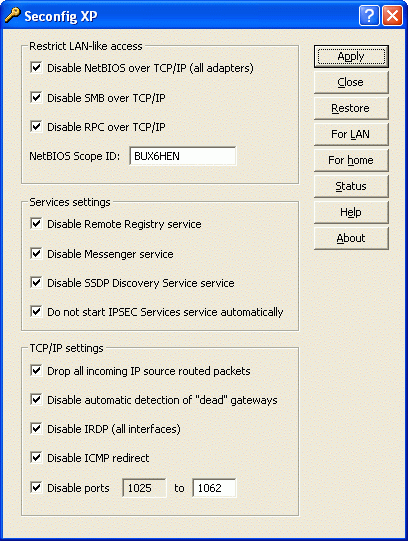 What's nice about these is that they help secure your machine without having anything run in the background to slow you down at all: Seconfig and SpywareBlaster
03 November 2007
Problems Transferring Files to MP3 Player Solved
Yahoo! Music Jukebox would freeze when synchronizing a playlist to my Sansa Connect (Amazon) player. I reinstalled YMJ and even tried other programs, such as MediaMonkey, Windows Media Player, and Winamp. However, I think that the special features and tie-ins with Yahoo! Music make YMJ the most reliable option (sad as that may be). I found, however, that the problems were with the MTP protocol that was part of the installation of WMP 11. Reinstalling WMP 11 fixed the problems transferring music with YMJ to the Sansa.
 player. I reinstalled YMJ and even tried other programs, such as MediaMonkey, Windows Media Player, and Winamp. However, I think that the special features and tie-ins with Yahoo! Music make YMJ the most reliable option (sad as that may be). I found, however, that the problems were with the MTP protocol that was part of the installation of WMP 11. Reinstalling
 12 October 2007
Working Around a Slow Laptop Hard Drive
As the owner of a Lenovo x41 tablet with a frustratingly slow 4200 rpm hard drive, the computing experience can be disappointing. Here are some tips, including maybe one or two that aren't obvious, to effectively workaround a slow laptop hard drive like mine. [Note: the links below are to how-to's for each step.]

More on using a UDMA CF card:
The 40 MB/sec transfer rate is impressive, but some aspects of the technology make it seem slow for frequent read/write operations. Storing a paging file or cache on it, for two examples, might not work very well. However, I have found the following do work well when put on a UDMA CF card:
- Max out your RAM-- this makes the biggest difference, and if you do so it is safer to...
- Disable the paging file-- this is a big disk operation that may not even be necessary for you
- Store frequently created files on a separate partition of your hard drive: Temp files [Control Panel-System-Advanced-Environment Variables], Mozilla Cache, Temporary Internet Files, Java Cache [Java Control Panel], Downloads folder, print spool folder-- this helps to keep your main partition defragmented, which is even better for...
- Smart Defragging by Layout.ini
- Remove software that does background I/O activity or monitoring (resident antivirus, antispyware, network scanning), if you can get away with it. (See this post for a security solution.)
- Disable the Indexing Service (this could probably go first!) [in services.msc]
- Disable Last Access timestamping of files
- Take advantage of your PC Card slot by getting the Delkin Cardbus UDMA CompactFlash adapter (Manufacturer Page / Amazon Product Page) and a UDMA CF card. My laptop's hard drive has a transfer rate of about 14 MB/sec, but a CF card in UDMA mode can sustain 40-45 MB/sec and far shorter access times.
More on using a UDMA CF card:
The 40 MB/sec transfer rate is impressive, but some aspects of the technology make it seem slow for frequent read/write operations. Storing a paging file or cache on it, for two examples, might not work very well. However, I have found the following do work well when put on a UDMA CF card:
- Microsoft Outlook .OST file
- Desktop Search Index (e.g. Copernic)
- Firefox (not the profile(s), though)
- Adobe Reader
[You need a direct download so that you can specify the installation directory.] - Pidgin with GTK runtime (again, profile should probably be kept on your hard drive)
- Other frequently used applications would probably also work well
07 October 2007
How I Fixed My Wireless
I have a Lenovo laptop with a Intel 2915abg wireless adapter, and I started getting several dropped connections. Troubleshooting a situation like this is difficult, because there are many places things can go awry. I tried several things before it started working well, but here's a full checklist if you want to go whole-hog to fix your wireless:
First of all, if you use a wireless utility like Intel PRO/Set or ThinkVantage Access Connections, make sure Wireless Zero Configuration is disabled in Run-services.msc -- it conflicts.
1) If multiple devices on your network drop their connections, there might be interference. Change the wireless channel and enable interference robustness (an Apple Airport feature, but it might be on other routers).
Ok, here's the intense regimen in case you suspect it's your PC that's whack:
2) Reset Winsock (Instructions) including restarts
3) Fully uninstall your wireless software (utility & driver) as well as antivirus, 3rd party firewall, other programs that may monitor your network and do the necessary restarts
4) Reinstall your stuff from step 3 (updated versions, if available)
5) Turn off power management (more info for Intel wireless) for your wireless adapter and instead decrease the transmit power (in advanced settings in Access Connections or hit the Configure button in Wireless properties if you use Windows XP to manage your networks) for power savings. I find a 25% (5 mW) transmission power to work very well (this is set in individual wireless network profiles in my setup, but you may have to just specify instead a global setting in the device properties. Your wireless utility might override device properties, so check out that area first).
6) If you have problems and you are using a particular encryption method, look for an update; e.g.: WPA2
Unless you have a special need for it, I recommend avoiding Microsoft TCP/IP Version 6. I can't prove it, but I don't think networking drivers for XP are quite ready for it. Maybe if you use Windows XP to handle all networking, it'll be ok, but stay away if you're still using XP-only 3rd party networking software or drivers.
First of all, if you use a wireless utility like Intel PRO/Set or ThinkVantage Access Connections, make sure Wireless Zero Configuration is disabled in Run-services.msc -- it conflicts.
1) If multiple devices on your network drop their connections, there might be interference. Change the wireless channel and enable interference robustness (an Apple Airport feature, but it might be on other routers).
Ok, here's the intense regimen in case you suspect it's your PC that's whack:
2) Reset Winsock (Instructions) including restarts
3) Fully uninstall your wireless software (utility & driver) as well as antivirus, 3rd party firewall, other programs that may monitor your network and do the necessary restarts
4) Reinstall your stuff from step 3 (updated versions, if available)
5) Turn off power management (more info for Intel wireless) for your wireless adapter and instead decrease the transmit power (in advanced settings in Access Connections or hit the Configure button in Wireless properties if you use Windows XP to manage your networks) for power savings. I find a 25% (5 mW) transmission power to work very well (this is set in individual wireless network profiles in my setup, but you may have to just specify instead a global setting in the device properties. Your wireless utility might override device properties, so check out that area first).
6) If you have problems and you are using a particular encryption method, look for an update; e.g.: WPA2
Unless you have a special need for it, I recommend avoiding Microsoft TCP/IP Version 6. I can't prove it, but I don't think networking drivers for XP are quite ready for it. Maybe if you use Windows XP to handle all networking, it'll be ok, but stay away if you're still using XP-only 3rd party networking software or drivers.
27 September 2007
PNRP 2.0 Upgrade for XP is Bad News
After installing KB 920342, wireless networking completely stopped working for me. Between Bonjour, ThinkVantage Access Connections, Intel PRO/Set Wireless, and all the other networking items, I have no idea what completely choked after installing this upgrade to a feature that I don't even understand. I recommend avoiding it.
In fact, perhaps the optional updates in Microsoft Update aren't really worth it:
In fact, perhaps the optional updates in Microsoft Update aren't really worth it:
- A Root Certificates Update led to redundant friendly names
- A new driver for Lenovo locked my keyboard and trackpoint, even in safe mode
- And now, PNRP 2.0
26 September 2007
XP Run Commands, Also Great for Configuration Shortcuts
Some examples:
See it at Erik's Wiki
- services.msc = Services
- devmgmt.msc = Device Management
- ipconfig /flushdns = Clear DNS Cache
See it at Erik's Wiki
15 September 2007
Safe to Remove Hardware Dialog Missing
Frustratingly, I could not find a solution to the problem outlined in KB 883517, even after installing the hotfix (for me, it was available from the computer manufacturer in a file called "Windows XP Update Modules").
The problem was that Balloon Tips were disabled. To enable Balloon Tips, go to the Taskbar and Start Menu section of Tweak UI. The option took effect right away, and the "It is now safe to remove your hardware" dialog reappeared.
The problem was that Balloon Tips were disabled. To enable Balloon Tips, go to the Taskbar and Start Menu section of Tweak UI. The option took effect right away, and the "It is now safe to remove your hardware" dialog reappeared.
04 September 2007
Smart Defragging by Layout.ini for Free
By default, Windows XP tracks what files load during boot and application launches, and it uses that information to prefetch files into RAM. Additionally, the prefetch data are parsed into a file, %WINDIR%\Prefetch\layout.ini, which is used by XP's built-in Disk Defragmenter to optimize the layout of those files on the hard drive for faster access. Also, by default, a limited defrag operation takes place in the background during idle every three days just for the files specified in layout.ini. You might get a bigger performance benefit, however, but running by defragging by layout.ini more often. The command to do this layout.ini defrag is defrag c: -b. The "-b" switch is almost undocumented, and might have originally meant "boot", but it relocates boot and application launch files contiguously and nearer to the beginning of the hard drive for faster access. Since it moves only hundreds of files instead of tens of thousands, it's much faster than a normal disk defragmentation. If you want, you can make a Scheduled Task to run defrag c: -b however often you like (I have Scheduled Task to run this quick defrag every day during idle). If you want to additionally disable the 3-day operation, uncheck "Optimize hard drive when idle" in Tweak UI (or set EnableAutoLayout to 0 in the registry key HKEY_LOCAL_MACHINE\SOFTWARE\Microsoft\Windows\CurrentVersion\OptimalLayout ).
You will still need to defragment the hard drive from time to time. It is most effective to do so before the desktop loads. The utility ScanDefrag is very useful in that regard. A normal defragmentation with Disk Defragmenter includes optimizations guided by layout.ini.
Some otherwise really excellent defrag utilities will actually undo the defrag by layout.ini. (Windows XP Disk Defragmenter respects layout.ini.) For normal desktop/workstation use, the Windows defragmenter is best IMHO.
NB: For this tip to work, you need the default registry entries below:
Key Name: HKEY_LOCAL_MACHINE\SOFTWARE\Microsoft\Dfrg\BootOptimizeFunction
Name: Enable
Type: REG_SZ
Value: Y
I believe this enables Disk Defragmenter to respect layout.ini.
Key Name: HKEY_LOCAL_MACHINE\SYSTEM\CurrentControlSet\Control\Session Manager\Memory Management\PrefetchParameters
Name: EnablePrefetcher
Type: REG_DWORD
Value: 3
0 = Prefetching Disabled; 1 = Application Prefetching Only; 2 = Boot Prefetching Only; 3 = Both Boot & Application Prefetching Enabled
PS Running Rundll32.exe advapi32.dll,ProcessIdleTasks will rebuild Layout.ini from the prefetch data and then (if EnableAutoLayout is set to 1) optimize layout on the disk from the refreshed layout.ini. The command also launches other tasks that happen during idle, such as System Restore.
You will still need to defragment the hard drive from time to time. It is most effective to do so before the desktop loads. The utility ScanDefrag is very useful in that regard. A normal defragmentation with Disk Defragmenter includes optimizations guided by layout.ini.
Some otherwise really excellent defrag utilities will actually undo the defrag by layout.ini. (Windows XP Disk Defragmenter respects layout.ini.) For normal desktop/workstation use, the Windows defragmenter is best IMHO.
NB: For this tip to work, you need the default registry entries below:
Key Name: HKEY_LOCAL_MACHINE\SOFTWARE\Microsoft\Dfrg\BootOptimizeFunction
Name: Enable
Type: REG_SZ
Value: Y
I believe this enables Disk Defragmenter to respect layout.ini.
Key Name: HKEY_LOCAL_MACHINE\SYSTEM\CurrentControlSet\Control\Session Manager\Memory Management\PrefetchParameters
Name: EnablePrefetcher
Type: REG_DWORD
Value: 3
0 = Prefetching Disabled; 1 = Application Prefetching Only; 2 = Boot Prefetching Only; 3 = Both Boot & Application Prefetching Enabled
PS Running Rundll32.exe advapi32.dll,ProcessIdleTasks will rebuild Layout.ini from the prefetch data and then (if EnableAutoLayout is set to 1) optimize layout on the disk from the refreshed layout.ini. The command also launches other tasks that happen during idle, such as System Restore.
01 September 2007
Fixing Standby on Newer Computers
If you have problems or delays entering or resuming from Standby mode, it may be because your computer doesn't have a parallel port. The parallel port was the printer port commonly used before USB became popular. Many newer computers, especially laptops and tablet PCs, don't have them. Windows XP has a hard time with this when it comes to power management.
To resolve this issue, use Device Manager to disable the Direct Parallel device. To do this, follow these steps:
1. Click Start, right-click My Computer, and then click Manage.
2. In the console pane, click Device Manager.
3. On the View menu, click Show hidden devices.
4. In the details pane, expand Network adapters.
5. Right-click Direct Parallel, and then click Disable.
From http://support.microsoft.com/kb/308467/en-us
To resolve this issue, use Device Manager to disable the Direct Parallel device. To do this, follow these steps:
1. Click Start, right-click My Computer, and then click Manage.
2. In the console pane, click Device Manager.
3. On the View menu, click Show hidden devices.
4. In the details pane, expand Network adapters.
5. Right-click Direct Parallel, and then click Disable.
From http://support.microsoft.com/kb/308467/en-us
Autoload the Desktop After Startup While Still Requiring a Password to Use
I really like this tip. It makes it so that you have instant access to everything after sign-in, rather than waiting for the computer to boot-up, signing-in, and then waiting again until the desktop loads. It's nice if you'd like to just turn on the computer, do a thing perhaps somewhere else, and then be able to start using it when you get back by entering your password as usual, only with your desktop already loaded. I thought I totally ripped off the idea from somewhere else, but I think I might have just combined a couple ideas i saw elsewhere:
1.Click Start, and then click Run.
2.In the Open box, type control userpasswords2, and then click OK.
3.Clear the "Users must enter a user name and password to use this computer" check box, and then click Apply.
4.In the Automatically Log On window, type the password in the Password box, and then retype the password in the Confirm Password box.
5.Click OK to close the Automatically Log On window, and then click OK to close the User Accounts window.
6. Go to Run again
7. In the Open box type or copy and paste the following: schtasks /create /tn LockPC /tr "rundll32.exe user32.dll,LockWorkStation" /sc onlogon
8. Click OK and enter your password in the upcoming window as prompted
What's going on here: You're setting up Windows to automatically log you into your user account, so your desktop will start to load automatically after startup. However, as soon as you're automatically logged in, your computer is locked so your computer cannot be used until your password is entered. Your desktop continues to load in the background after the PC is locked. The LockPC task you made in step 7 is available for you to modify it if you like in Scheduled Tasks in the Control Panel.
Resources for this last tip:
http://support.microsoft.com/kb/315231
http://www.microsoft.com/resources/documentation/windows/xp/all/proddocs/en-us/schtasks.mspx?mfr=true
http://www.microsoft.com/windowsxp/using/security/learnmore/tips/schnoll1.mspx
1.Click Start, and then click Run.
2.In the Open box, type control userpasswords2, and then click OK.
3.Clear the "Users must enter a user name and password to use this computer" check box, and then click Apply.
4.In the Automatically Log On window, type the password in the Password box, and then retype the password in the Confirm Password box.
5.Click OK to close the Automatically Log On window, and then click OK to close the User Accounts window.
6. Go to Run again
7. In the Open box type or copy and paste the following: schtasks /create /tn LockPC /tr "rundll32.exe user32.dll,LockWorkStation" /sc onlogon
8. Click OK and enter your password in the upcoming window as prompted
What's going on here: You're setting up Windows to automatically log you into your user account, so your desktop will start to load automatically after startup. However, as soon as you're automatically logged in, your computer is locked so your computer cannot be used until your password is entered. Your desktop continues to load in the background after the PC is locked. The LockPC task you made in step 7 is available for you to modify it if you like in Scheduled Tasks in the Control Panel.
Resources for this last tip:
http://support.microsoft.com/kb/315231
http://www.microsoft.com/resources/documentation/windows/xp/all/proddocs/en-us/schtasks.mspx?mfr=true
http://www.microsoft.com/windowsxp/using/security/learnmore/tips/schnoll1.mspx
Restore the Startup Folder
I had a problem with a program shortcut in my Startup folder that would launch with an error that the program was already loaded. I figured out that not only was the shortcut in the Startup folder for "All Users" but that my user account Startup folder was also considered to be that same "All Users" folder (%ALLUSERSPROFILE%\Start Menu\Programs\Startup) [I'm using the universal direction here. You can type %ALLUSERSPROFILE% and %USERPROFILE% into the Run box in the Start Menu to find the specific absolute paths for your system]. In effect, everything in the Startup folder would launch twice: once for "All Users" and again just for my account, even though it was the same folder.
To fix this, I created new folders: %USERPROFILE%\Start Menu\Programs and %USERPROFILE%\Start Menu\Programs\Startup which were missing. I then used RegEdit to go to the registry key HKEY_CURRENT_USER\Software\Microsoft\Windows\CurrentVersion\Explorer\User Shell Folders and made sure the values Start Menu, Programs, and Startup pointed to the folders in my user account folder and not the All Users folder. Now, my Common Startup and user Startup folders were different.
Related: in Regedit, use String values [REG_SZ] for absolute paths (e.g.: C:\Documents and Settings\Administrator) and Expandable String values [REG_EXPAND_SZ] for the %-style paths (e.g. %USERPROFILE%).
Reference: http://windowsxp.mvps.org/usershellfolders.htm
UPDATE: You can also use Tweak UI to adjust user shell folders. This is useful in the case above, or if you want to make an adjustment such as keeping "My Documents" and the Desktop folder on the same drive. Within Tweak UI, the user shell folders setting is in My Computer-Special Folders.
To fix this, I created new folders: %USERPROFILE%\Start Menu\Programs and %USERPROFILE%\Start Menu\Programs\Startup which were missing. I then used RegEdit to go to the registry key HKEY_CURRENT_USER\Software\Microsoft\Windows\CurrentVersion\Explorer\User Shell Folders and made sure the values Start Menu, Programs, and Startup pointed to the folders in my user account folder and not the All Users folder. Now, my Common Startup and user Startup folders were different.
Related: in Regedit, use String values [REG_SZ] for absolute paths (e.g.: C:\Documents and Settings\Administrator) and Expandable String values [REG_EXPAND_SZ] for the %-style paths (e.g. %USERPROFILE%).
Reference: http://windowsxp.mvps.org/usershellfolders.htm
UPDATE: You can also use Tweak UI to adjust user shell folders. This is useful in the case above, or if you want to make an adjustment such as keeping "My Documents" and the Desktop folder on the same drive. Within Tweak UI, the user shell folders setting is in My Computer-Special Folders.
Subscribe to:
Comments (Atom)

