Amazon.com

Disclaimer

All the tips/hints/fixes/other information posted here are at your own risk. Some of the steps here could result in damage to your computer. For example, using a Windows registry editor like RegEdit could result in unintended serious changes that may be difficult or impossible to reverse. Backups are always encouraged.
Showing posts with label security. Show all posts

27 July 2009

An Easy Way to Improve Security in IE

The Hazards of MIME Sniffing

Bottom line:
As a user you can go into security settings for the Internet Zone and switch off the “Open files based on content, not extension” option.

06 January 2009

Norton AntiVirus 2009 is Surprisingly Good

I've been down on Norton/Symantec products in the past, but Norton AntiVirus is the best antimalware application I've ever used. It's fast, efficient, and protects Firefox. I got my copy for $20 after rebate at Staples, and there might be other good deals elsewhere.

Update: I now more fond of Microsoft Security Essentials, which is free.

31 August 2008

New Antivirus Recommendations

  • Avast! Home: Web Shield, Network Shield, Email/Outlook (Attachments Only), Standard Shield (Check only on copying/modifying files and not on application launch) -- Very fast and Web Shield does not slow down browsing.
  • SpywareBlaster
Please see previous security/malware posts for more information, especially why I prefer a "light" antivirus strategy.

06 August 2008

Antivirus Strategy Update: Recommended Download Manager

As I've written earlier, I believe real-time antivirus carries too high a performance cost for the protection it provides. Windows has a deserved reputation for security holes, but antivirus is not the most relevant part of a wise security setup for a PC. In fact, traditional antivirus has some troubling disadvantages:
  1. Slow read/write disk access up to 15-fold
  2. Definitions may not be available until after a virus has reached your computer
  3. Deleting or quarantining false positives can be hazardous
  4. Background scanning can interfere with software installation and updating, leading to malfunction that is difficult to correct
  5. Popular free software like AVG updates only daily, so even if proper definitions are available, your software might not have them
  6. Marketing preys on fears of the Internet that aren't proportional to the actual risk involved
  7. The same files may be scanned many times even though they hadn't changed at all since the last scan
  8. Hazardous files may still go undetected by scanner incompetence or bad virus definitions
I still use antivirus, but only for downloads and for periodic on-demand scans. To assist with this, I use a download manager that scans downloaded files. I've recently tried many options: Free Download Manager 2.5/2.6, Fresh Download 8.06, Download Accelerator Manager, Download Statusbar, BitComet, LeechGet 2007, Orbit Downloader, and FlashGet. Of these, my current favorite choice is Orbit Downloader, which needs the FlashGot extension for Firefox 3 to work properly with that browser. For scanning, I use ClamWin but with a compiled AutoHotkey script so that it scans downloaded files in a minimized window unobtrusively. You're welcome to download the small .EXE I use for this purpose for yourself (specify that .EXE as your virus scanner in the options of the download manager).

Beyond this, it's wise to use an active firewall such as the one the comes with Windows XP SP2 or Vista, preventative steps such as subscriptions against malware sites as is provided with SpywareBlaster and AdBlock Plus, and to keep unnecessary networking functions disabled.

UPDATE: Avast is free, has frequent updates, and can be set to only scan when files are being copied/modified. I now prefer this approach over Orbit Downloader + ClamWin.

24 May 2008

Restore Default NTFS, Etc. Permissions for Vista (and XP)

This was difficult to find online, so I thought I'd write a post about it. Here's the bottom line:

secedit /configure /cfg %windir%\inf\defltbase.inf /db defltbase.sdb /verbose


More info and instructions for XP: KB 313222

30 April 2008

[SOLVED] Adobe Reader 8.1.2 Freezes Entire Computer

Under Vista, opening some PDF's can crash Adobe Reader 8.1 so badly that the entire computer can freeze up and only a hard reboot is possible. The conflict is threefold: Reader's GPU acceleration, Vista's UAC, and temp folder security.

I fixed it by adjusting the following in Reader's preferences (not all steps may be necessary):
  • Automatic Default Page Layout
  • Automatic Default Zoom
  • Hardware rendering for legacy video cards
  • PDF browser plugin, fast web view (irrelevant to this, though)
  • Acrobat JavaScript
  • Preferred Media Player (.i.e., set to Windows Media Player)
  • Multimedia operations
  • Verify signatures when opened
  • Check spelling when typing
  • External content (off by default, I think)
Most importantly, adjust the properties for AcroRd32.exe to run in compatibility mode for Windows XP SP2.

Cross-posted from http://forum.notebookreview.com/showthread.php?p=3302386#post3302386

27 April 2008

Traditional Antivirus is Wasteful

A response to this LifeHacker post:

Traditional real-time antivirus scanning is wasteful, IMO. Viruses can come through in what you download, or if your networking settings are weirdly insecure-- but it's not like you can just "catch" a virus. To warn people that their computers might be unknowingly infected is unnecessarily alarmist; a virus or trojan would have to come from a downloaded or copied file. I scan every file I download by having Free Download Manager call ClamWin (and A-Squared Command Line), which I update hourly (I even made an AutoHotkey script so that the scan happens in the background). This precaution makes more sense than scanning every file whenever it is read or written, and it is hugely better for your I/O performance.

All in all, though, blacklist-paradigm antivirus does not make a lot of sense nowadays for on-access scanning, because viruses (and more relevantly, other kinds of malware) spread before virus definitions are created. Furthermore, on-access scanning of files involves a huge performance cost. If you scan all incoming files, extra file scanning doesn't make any sense unless the virus definitions have been updated in the interim. I'm perplexed, for instance, by Avast!, which can scan all files + emails + IMs... if all files are being scanned, why the extra scanning repetition due to its route of entry?

However, blacklist-oriented antivirus seems wise for periodic on-demand scanning. For this, Norton Security Scan available free through Google Pack is a nice choice.

A better choice for so-called real-time antivirus, though, is behavior-based scanning such as Threatfire, but I prefer Mamutu ($30 for 1 year). Threatfire would interfere with several programs (especially the kind that export files to other formats: PDF Creator, AutoHotkey EXE compiler) even when "suspended," so I can't recommend it unless you're allergic to spending money on security software (as I tend to be). Comodo Firewall is another free alternative in this vein, but it is quite confusing.

Additionally, you can take some preventive measures by using SpywareBlaster. I paid for the privilege of auto-updating and to support its development, but you don't have to.

The one thing that irritates me most about many anti-malware products: the false positives. Since trying out Comodo BOClean and having it shut down a program I wrote myself as a trojan, I've been very suspicious of claims that BOClean has caught malware other antivirus missed. When I see claims like that, I wonder about the likelihood that it is a false positive. (To be clear, I do NOT recommend Comodo BOClean.)

A final note is that I think infrequently-updated real-time antivirus like AVG, which allows only daily updates in its free version, is the worst (if used by itself), because you're exposed to the newest threats while suffering an I/O performance hit.
17 March 2008

Services You Should Disable If You Aren't on a Microsoft Network

These being disabled won't affect Internet usage, but you won't be able to do Microsoft networking stuff. For me, those features are more of a liability than a help. Some are disabled by default, because even Microsoft has determined that they are risky.

  • Alerter
  • ClipBook
  • Computer Browser
  • Distributed File System
  • Distributed Link Tracking Client
  • Messenger
  • Net Logon
  • Net.Tcp Port Sharing Service
  • Netmeeting Remote Desktop Sharing
  • Network DDE
  • Network DDE DSDM
  • Remote Registry
  • Server (and uncheck Client for Microsoft Networks and File and Printer Sharing in your network connection properties)
  • TCP/IP NetBIOS Helper (and disable NetBIOS over TCP/IP in your network connection TCP/IP properties)
  • Telnet
  • Terminal Services Session Directory
Others that you might want to disable but might not apply to you:
  • Distributed Link Tracking Server
  • Error Reporting Service
  • IMAPI CD-Burning COM Service (unnecessary if you have burning software, I believe)
  • Indexing Service
  • Intersite Messaging
  • Kerberos Key Distribution Center
  • License Logging
  • Network Provisioning Service
  • Performance Logs and Alerts
  • Remote Desktop Help Session Manager
  • Routing and Remote Access
  • Smart Card
  • WebClient
Be smart and do research before you muck too much with this stuff. I recommend Turbo Services Manager so that you can see what depends on what. If you disable one service, you should disable all the services that depend on it, but if doing so would disable something you should keep, don't disable that first service in the first place!

Some Services Are Just Supposed to Run "Manual"

I tweak with Services settings for better security and performance, but it's a silly endeavor, because the services themselves are quirky: they might not start correctly if they are set to Manual when they should be Automatic (3rd party services especially, it seems) and vice versa!

Here are some services that should have their startup types be Manual even though they are running most of the time:

  • COM+ Event System
  • Network Connections
  • Network Location Awareness (NLA)
  • Remote Access Connection Manager
  • Telephony
  • Terminal Services

16 March 2008

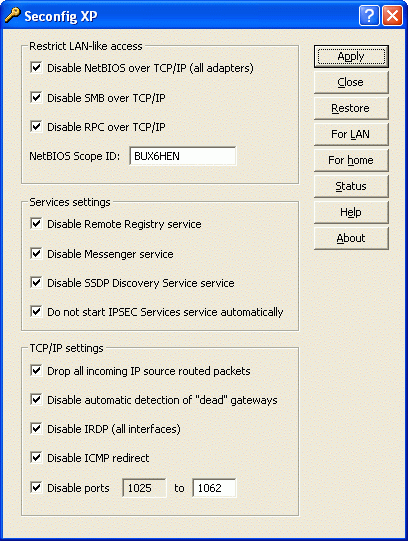
2 Nice & Free Security Utilities: Seconfig and SpywareBlaster

What's nice about these is that they help secure your machine without having anything run in the background to slow you down at all: Seconfig and SpywareBlaster

Scan Downloaded Files with ClamWin and Firefox

I do this instead of running antivirus in the background constantly, but that point of view is apparently controversial. Use the Download Scan Firefox extension and configure as follows:

Exclude these types: jpg, jpeg, gif, png, htm, css, asx
Path to clamwin.exe
Parameters: --mode=scanner --path=%1 --close

My opinion is that downloaded files are the main source of virus trouble, so scanning upon download is good for safety; where constant background scanning is overkill and a drain on system performance.

08 September 2007

Fine-Tune Windows Defender Scanning for Power Management


Within the Windows Defender options page, there are no choices to prevent scheduled scans while running on battery power or to restrict scans to running while the computer is at idle. However, Windows Defender uses simply the built-in Windows XP (or Vista, I assume) Task Scheduler. The Windows Defender scheduled task is hidden, so you might not realize at first that it is adjustable.

Go to Scheduled Tasks in Control Panel, and select Show Hidden Tasks from the Advanced menu. The Windows Defender item is "MP Scheduled Scan" with the run command:
"C:\Program Files\Windows Defender\MpCmdRun.exe" Scan -RestrictPrivileges

You can adjust settings for the scan to run only during idle or AC power as you like. Using the command above, you could also make a shortcut to run a quick scan whenever you like.

02 September 2007

Certificate Issuers Might Have Weird 'Friendly Names'

I had to specify a wireless network logon using certificate validation by Equifax Secure Certificate Authority. The certificate issuer, however, was not in the drop-down list in my wireless network utility (ThinkVantage Access Connections). I found out that the so-called Friendly Name for the certificate became "GeoTrust", who acquired certificates from Equifax, when Windows Update updated the root certificates on the computer. To make matters more confusing, there was another certificate with the friendly name "GeoTrust": GeoTrust Primary Certification Authority, yet this proper name distinction did not appear in the list, because only the Friendly Names were listed in my wireless utility. (Not so friendly, if you ask me!) Compounding the confusion are other certificates with similar names to the one I needed: Equifax Secure eBusiness CA-1 and Equifax Secure eBusiness CA-2.

To be sure that I wasn't selecting the wrong "GeoTrust" certificate in the drop-down list, I edited the Friendly Name back to its proper name, "Equifax Secure Certificate Authority." You can view and manage the root certificates on your computer by going to Internet Options in Internet Explorer or the Control Panel. Click the Content tab and then Certificates. Find your desired certificate under the Trusted Root Certification Authorities tab and click View and then the Details tab. Select the Friendly Name field and click Edit Properties. There you can change the Friendly Name.